How-To: Manage Subjects in the Keyserver
A subject registers a user (a person who logs in to the Keyserver UI) or a client (a CI/CD system or service using OAuth2 tokens) and links it to roles. This page covers creating, editing, assigning roles to and deleting subjects.
Production Authentication Required
Subject administration in production must be performed by identities authenticated through your external OAuth2/OIDC provider (Azure Entra ID, GitLab OIDC, ...). The internal Authserver is for trial environments only.
Prerequisites
- Access to the Keyserver UI at
https://keyclient.<UNIQUE-ID>.cryptera-security.io - A subject whose role includes the
useradminNature (for exampleadminuser) - An active administrative session: on the Admin page, enter a Description and click Create. If your deployment requires more than one authorizer, the session stays pending until another administrator authorizes it. See Administrative Sessions.
- For clients and production users: the identity provider that issues their tokens, so you can look up the identifier claim
Click Subjects in the navigation bar. The list shows each subject's Name, Type and Description, with edit (pencil) and delete (bin) icons under Action.
Create a subject
- Click Create.
- Fill in the form (fields below).
- Under Associated Roles ..., tick the roles the subject needs.
- Click Save.
The subject can authenticate from its next request.
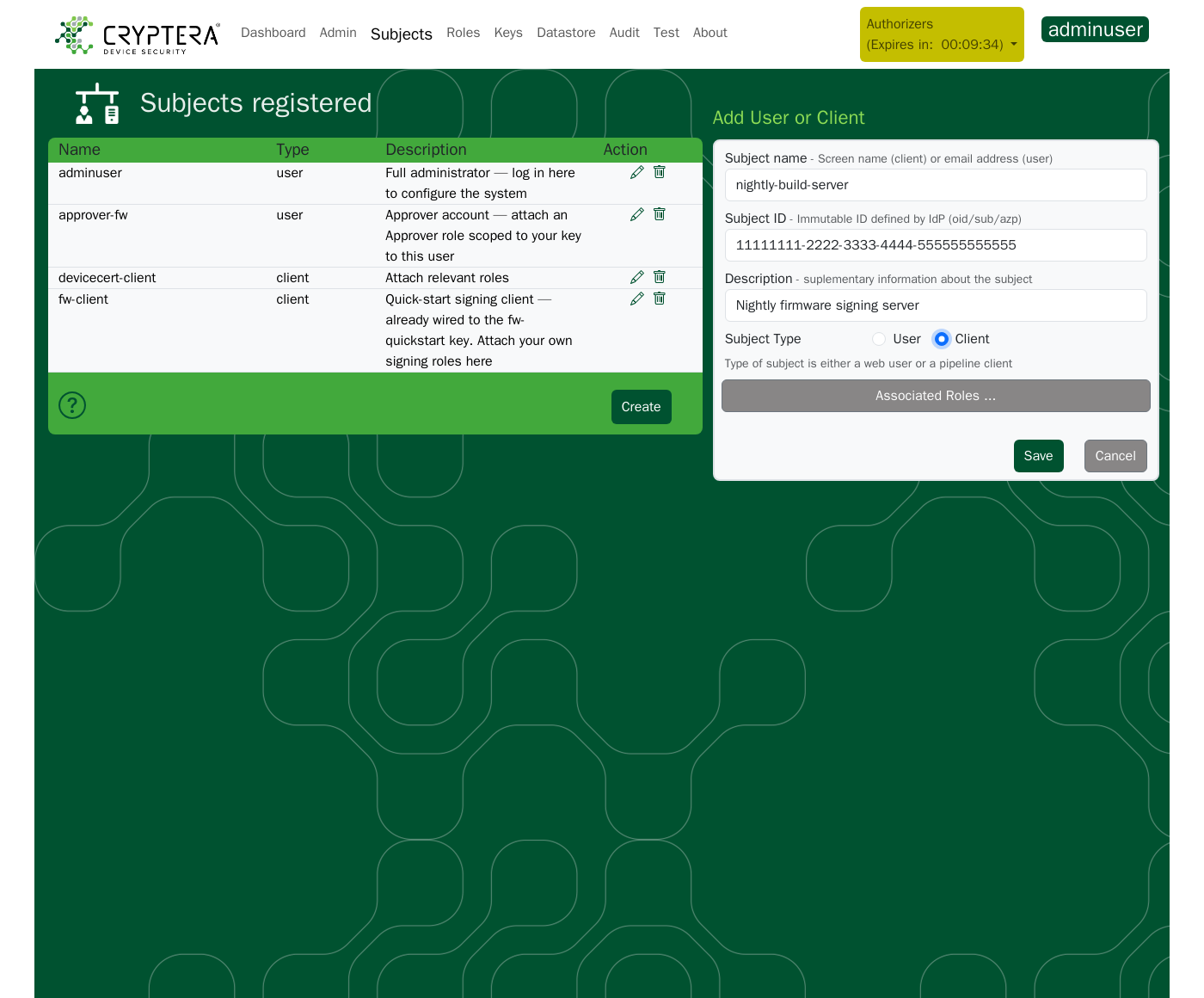
| Field | What it is | Matched against the token? |
|---|---|---|
| Subject name | A human-readable label. The form describes it as "Screen name (client) or email address (user)" | Clients: no. Users: at first login only. If no Subject ID matches a user's token, the Keyserver matches the token's username claim (for example preferred_username) against Subject name, then writes the token's user ID into Subject ID. Later logins overwrite Subject name with the username claim |
| Subject ID | The identity provider's stable identifier (oid, sub or azp). Pick the claim that does not change when a user or pipeline is renamed | Yes, on every request. A non-wildcard Subject ID must match the claim value in full. Copy the value from an issued token; do not retype it |
| Description | What the subject is for, for example Client used by the CI pipeline for product X | No |
| Subject Type | User (a person logging in through the browser) or Client (a machine account using OAuth2 client credentials) | No |
Getting Subject name and Subject ID the wrong way round is the most common reason a valid token is rejected with 401 on every call.
Which claim carries the Subject ID depends on the flow:
| Flow | Claim to use |
|---|---|
| Entra ID service account (client credentials) | azp, the app registration's Application (client) ID |
| Entra ID interactive user | oid (or sub) |
| GitLab CI OIDC | sub, for example project_path:group/project:ref_type:branch:ref:main |
| Trial Authserver client | sub, an MD5 hash of the client ID; for fw-client, cf6faf7065a6bceb95460a733002dce3 |
Role examples: ci-orderer-fw-quickstart (built from the fwsigner Nature), fw-approver-fw-quickstart (built from approver), and the built-in REVIEWER and KEYADMIN roles. See Manage Roles in the Keyserver.
Wildcard Subject IDs for clients
A Subject ID ending in * matches any client token whose identifier starts with the prefix before the *, so a group of related pipelines can share one registration:
project_path:group/project-a:ref_type:branch:ref:main   ← matches only this identifier
project_path:group/*                                    ← matches any pipeline in this group
- The
*must be the last character. Patterns such as*-prodorgitlab/*/projectdo not work. - The prefix is compared case-insensitively:
PROJECT_PATH:GROUP/*matchesproject_path:group/project-a:ref_type:branch:ref:main. - Wildcards apply only to client (service-account) tokens. A user login matches the Subject ID without wildcards.
- The wildcard is tried only when no subject matches the identifier in full.
Use a wildcard only for pipelines that need identical access and are governed by the same team. Never register a bare *: it matches every client token.
Edit a subject
- Click the pencil icon next to the subject.
- Change any field: Subject name, Subject ID, Description, Subject Type or the ticked roles.
- Click Save.
Changing the Subject name has no effect on authentication for clients. Changing the Subject ID takes effect immediately.
Editing the Subject ID switches which identity authenticates
From the moment you save, tokens carrying the old identifier fail with 401, and tokens carrying the new one match. Nothing warns you, and a pipeline still presenting the old identity breaks at its next run. Change it during a maintenance window, with the new credentials ready.
Assign or remove roles
Either way gives the same result:
- From the subject: click the pencil icon, expand Associated Roles ..., tick or untick roles, and click Save.
- From the role: on the Roles page, click the role's pencil icon, expand Associated subjects ..., tick or untick subjects, and click Save.
Delete a subject
Deletion is permanent, and nothing stops you deleting your own account
The only safeguard is the administrative session. There is no check for the current user, the session owner or an administrative account: delete the subject you are logged in as and you can be locked out. A deleted subject cannot be restored.
Before deleting an administrative subject, confirm that another administrator can log in and hold an administrative session.
- Click the bin icon next to the subject.
- Click Revoke in the confirmation dialog.
Soft-delete and name reuse. Deleting a subject renames both its Subject name and its Subject ID with a -deleted-<timestamp> suffix and marks the record cancelled. Re-creating the same Subject ID gives you a new subject with no roles; nothing is recovered from the deleted one. Deleting a role works the same way: the role is renamed, and re-creating the name gives an empty role that no subject holds.
Audit entries keep the Subject ID that made each call. If you re-create a Subject ID, the deleted subject's entries and the new subject's entries appear under the same Created By value; use the date range to tell them apart.
Replace or contain an identity
A subject is an authorization record, not a credential. Removing its roles or deleting it blocks Keyserver access on the next request. It does not revoke the secret or any issued token. Do that at your identity provider.
Choose by whether the principal has changed:
| Situation | Do this |
|---|---|
| Same principal, new identifier (a pipeline renamed in GitLab, an identity-provider migration that reissues identifiers) | Edit the Subject ID in place. Roles carry over |
| Different principal (ownership moved to another team, or re-provisioning) | Create a new subject with a fresh identifier and grant roles after review, then delete the old one |
If a credential is compromised:
- In the Keyserver, immediately: remove the subject's roles. This blocks access as fast as deleting it, can be undone, and keeps the record for the investigation.
- At your identity provider, in parallel: revoke or rotate the credential and invalidate outstanding tokens. Issued JWTs may stay valid until they expire.
- Provision a new identity with an identifier never used on this Keyserver. Re-creating a subject with the old Subject ID lets a stolen token match again.
- Create the new subject with only the roles that survive review.
- Delete the old subject once the investigation no longer needs it. Do not delete it while a wildcard subject also matches its identifier: the wildcard then matches instead.
If an identity is transferred or re-provisioned, avoid an access gap: provision the new identity, create its subject with reviewed roles, cut the pipeline or tool over and confirm it works, then delete the old subject.
Best practices for subject management
- Separate users from clients. Register people as users (
user@company.com) and pipelines as clients (pipeline-<project>). - Keep signer and approver roles on different subjects. See Best practices for role management.
- Review client access periodically. Remove roles that client subjects no longer need. Rotate credentials at your identity provider; re-creating a subject rotates nothing.
- Write a Description for every subject.
If something fails
| Symptom | Cause and fix |
|---|---|
Valid token but 401 "The user/client is not valid" | The Subject ID does not match the token's identity claim (Create a subject) |
| A re-created subject has none of its former roles | Deletion is permanent and re-creating makes a new subject. Re-attach the roles (Assign or remove roles) |
| A wildcard subject does not match | Only a trailing * is supported, and only client tokens are matched against wildcards (Wildcard Subject IDs) |
Full status-code reference: Error Codes.
Related pages
- Manage Roles: creating the roles subjects are assigned
- Integrate a Headless Build Server: the Subject ID for an Entra client-credentials service account
- Integrate Keyserver with GitLab CI: project-based Subject IDs for GitLab pipelines
- Monitor and Filter the Audit Log: reviewing subject changes